Login
Welcome to ASCENDER ParentPortal. This site provides web access to school-related information about your students, including attendance, grades, discipline, and immunizations.
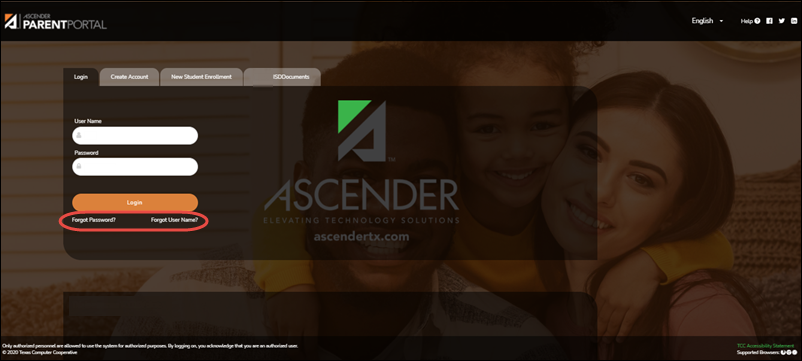
To access the ASCENDER ParentPortal, you must log on.
- If you are a new user and do not have an ASCENDER ParentPortal account, you must create your account.
- Once you have an ASCENDER ParentPortal account, to gain access to your student's records, you must provide a unique portal ID for each student. Your student's district or campus will provide the portal ID.
Apply for a Charter School Waitlist
The Charter School Waitlist allows you to put your student(s) on a waitlist for admission to a Charter School.
- Click Apply to start the Charter School Application process.
Log on to ASCENDER ParentPortal:
MOBILE DEVICE USERS: On a mobile device, tap Login to access the login fields.
| User Name | Type the user name you entered when you created your ASCENDER ParentPortal account. Your user name is not case-sensitive. |
| Password | Type the most recent password entered for this account. Your password is case-sensitive. |
Click Log In. The student's Summary page is displayed.
WARNING! If you have three unsuccessful attempts to log on (invalid user name/password combinations), the system will lock out your account for a time set by the district. Try logging on again later.
Create an ASCENDER ParentPortal Account:
Click Create Account to go to the Create Account page. Follow the instructions for creating an ASCENDER ParentPortal account.
MOBILE DEVICE USERS: On a mobile device, tap Login to access this button.
Add a Student to your ASCENDER ParentPortal Account:
Under New Student Enrollment, click Create Account to go to the Create Account page where you can create an account and then enroll a student. Follow the instructions for creating an ASCENDER ParentPortal account.
Recover User Name/Reset Password:
II. Retrieve your user name, or update your password.
If you have forgotten your password, you can reset it. You can also change your password at any time.
From the Login page, click the link below the login fields to go to the Reset Password page.
MOBILE DEVICE USERS: On a mobile device, tap Login to access this link.
Access Public Documents:
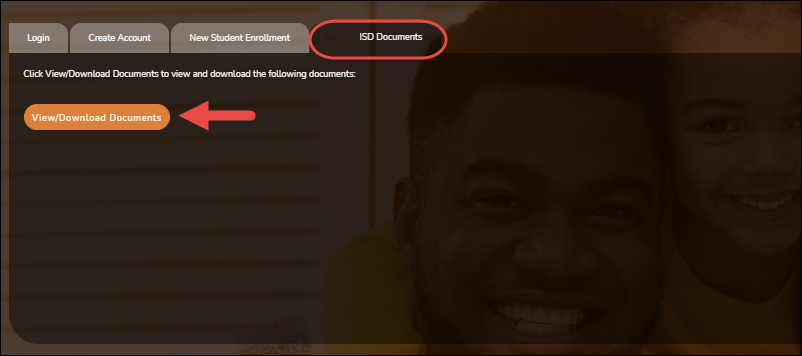
From the Login page under District Name Documents, click View/Download Documents to go to the Public Documents page where you can access documents provided by the district or campus that do not require a login, such as a calendar or sports schedule.
Change Language:
By default, ASCENDER ParentPortal is displayed in English. To access ParentPortal in Spanish, select Spanish from the drop-down field in the top-right corner of the Login page.

Your language selection will be retained for the current session.
Some content will only be displayed in Spanish if the district has provided Spanish content; otherwise, English content is displayed.
MOBILE DEVICE USERS: On a mobile device, tap the menu in the top-right corner to access the language field.