Reset Password
If you have forgotten your password, you can reset it. You can also change your password at any time.
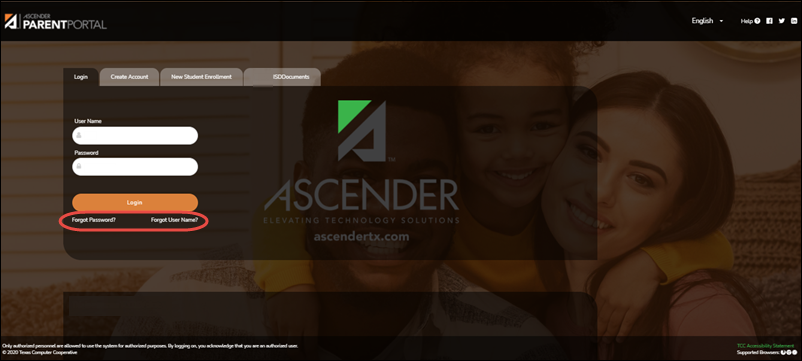
From the Login page, click the link below the login fields to return back to the Reset Password page.
MOBILE DEVICE USERS: On a mobile device, tap Login to access this link.
Reset Password
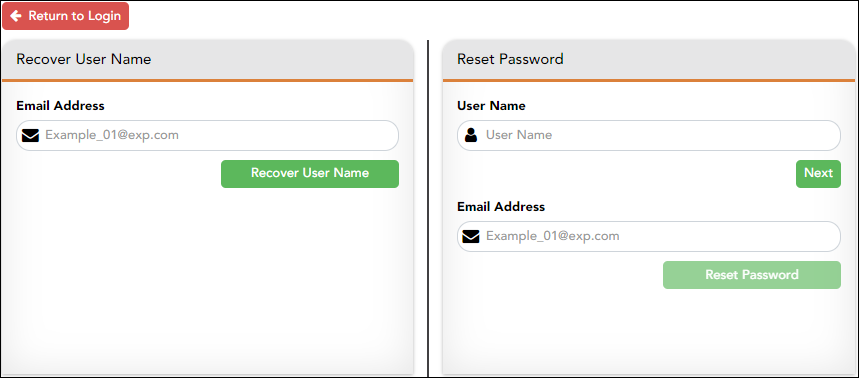
You have two options for resetting your password: By User Name and By Email Address.
By User Name:
| User Name | Type your User Name. |
❏ Click Next.
You are prompted to enter the answer to one of your hint questions.
❏ Type the answer and click Next.
| Password |
Type a password that you will use when you log on to ASCENDER ParentPortal.
Requirements: Between 16 and 46 characters. Must include at least one of each of the following character types:
|
| Re-enter Password | Re-type a new password. |
❏ Click Finish.
The My Account page opens.
By Email Address:
| Email Address | Type your email address. |
❏ Click Reset Password.
A message is displayed indicating that instructions for resetting your password were sent to the email address entered.
❏ Click Close to close the message.
Return to ParentPortal, and log on using your user name and password.