Create Account
You can use the Create Account wizard to create a StudentPortal account.
IMPORTANT: Upon initial account creation or log on to the portal, the End User License Agreement (EULA) for ASCENDER is displayed. Users must accept the agreement in order to proceed.
User Information:
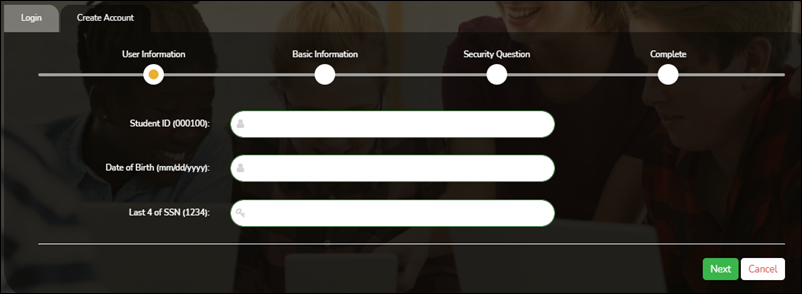
| Student ID | Type your Student ID number. |
| Date of Birth | Type your birth date. |
| Last 4 of SSN | Type the last four numbers of your social security number. |
❏ Click Next.
If you entered the data correctly, the Basic Information step opens.
Basic Information:
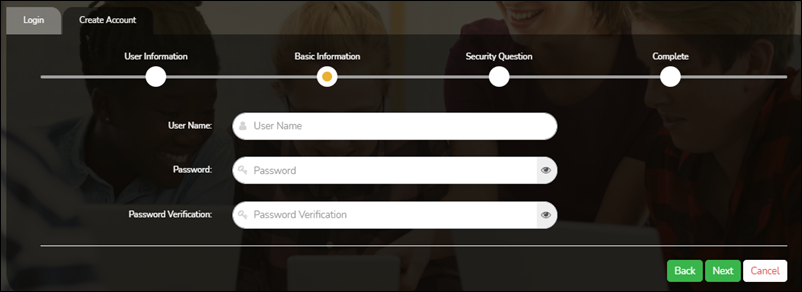
| User Name |
Type a unique user name that will identify you when you log on to the system, such as a combination of letters from your first and last name.
|
| Password |
Type a password that you will use when you log on to StudentPortal.
Requirements: Between 16 and 46 characters. Must include at least one of each of the following character types:
|
| Confirm Password | Retype the password exactly as you typed it above. This step confirms that you typed your password as you intended. |
❏ Click Next.
If you entered all required data correctly, the Security Question step opens.
Security Question:
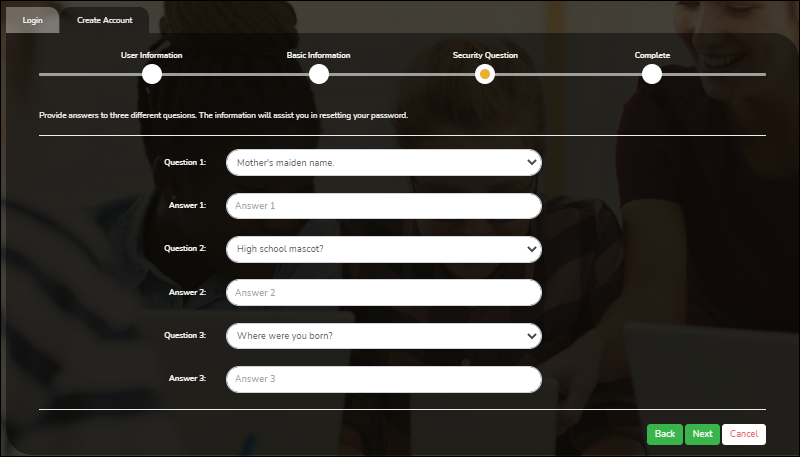
| Question | Select three questions to which you will provide an answer. The questions are asked in the event that you forget your password. You must select three different questions. You cannot repeat any questions/answers. |
| Answer | Type the answer to each question. If you forget your password, you will be required to answer the question correctly in order to recover your account. Be sure to select questions for which you will easily remember your answer. Answers are case sensitive. |
❏ Click Next.
License Agreement
Review and accept the End User License Agreement (EULA) for ASCENDER. This agreement must be accepted in order to proceed.
❏ Select Accept.
❏ Click Next.
If you entered all required data, the Complete page opens.
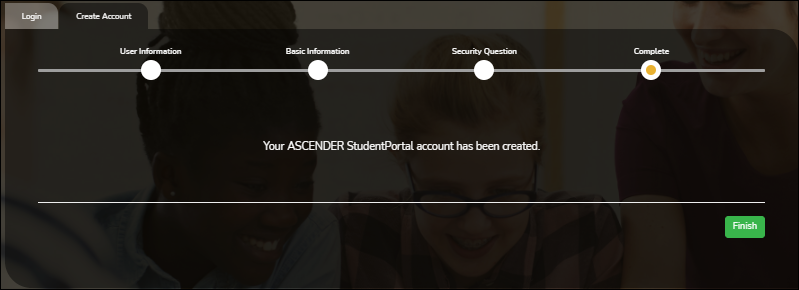
❏ Click Finish.
The ASCENDER StudentPortal page opens.